
Passwords alone don’t cut it anymore. Every year, billions of login credentials end up in data breaches, phished, or traded in corners of the internet most people never visit. If you’re using a password you’ve reused, slightly tweaked, or picked because it was easy to remember, you’re one leaked database away from someone else logging into your email, bank, or social media as you.
Two-factor authentication is the simplest fix most people still haven’t turned on. It takes less than five minutes to set up and can block the overwhelming majority of account takeover attempts before they even start. Here’s exactly what two-factor authentication is, how it works, and why you need it on every account that offers it.
What Is Two-Factor Authentication?
Two-factor authentication (2FA) is a login process that requires two separate pieces of proof before granting access to an account — not just a password. Instead of relying only on “something you know,” 2FA adds a second, independent layer, so even if your password is stolen, an attacker still can’t get in without that second piece.
How 2FA Differs From a Password Alone
A password is a single point of failure. It doesn’t matter how strong it is — if it’s exposed in a breach, guessed, or phished, the whole lock is picked. 2FA changes that math. It pairs your password with a second factor that lives somewhere an attacker usually can’t reach: your phone, a physical key, or your fingerprint.
The Three Types of Authentication Factors
Security experts generally group authentication into three categories:
- Something you know – a password or PIN
- Something you have – a phone, security key, or authenticator app
- Something you are – a fingerprint, face scan, or other biometric
Two-factor authentication combines any two of these categories. Using two passwords, for example, isn’t real 2FA — it’s still just “something you know,” twice.
How Does Two-Factor Authentication Work?
When 2FA is enabled, logging in becomes a two-step process. You enter your username and password as usual, and the service then asks for a second factor before letting you in. Only after both checks pass does the account unlock.
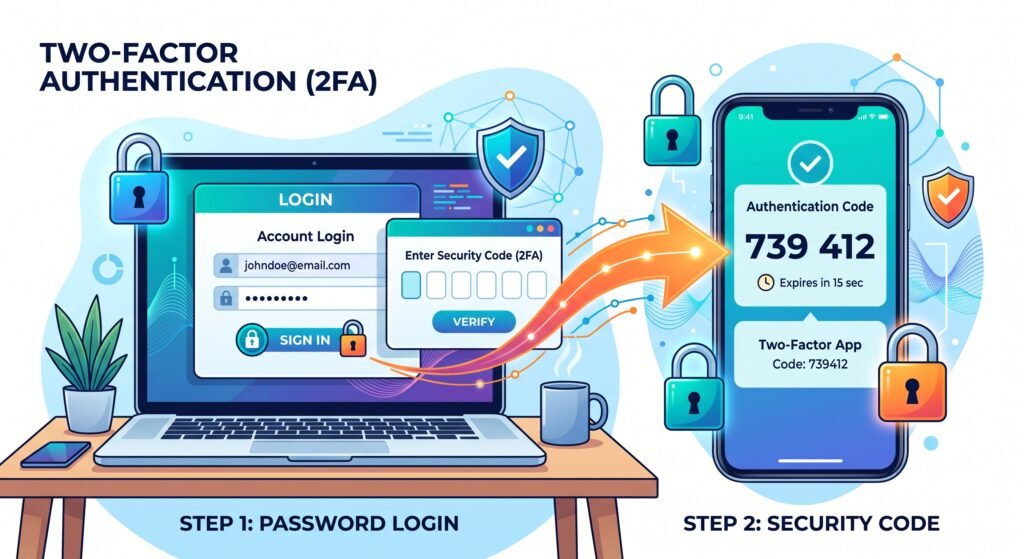
Common 2FA Methods
- SMS or email codes – a one-time code sent to your phone or inbox
- Authenticator apps – apps like Google Authenticator or Authy that generate a rotating code every 30 seconds
- Push notifications – a simple “Approve” or “Deny” prompt sent to your phone
- Hardware security keys – physical USB or NFC keys like a YubiKey
- Biometrics – fingerprint or face recognition built into your device
Authenticator apps and hardware keys are generally considered stronger than SMS codes, since text messages can be intercepted through SIM-swapping scams.
Why You Need Two-Factor Authentication
Passwords Alone Aren’t Safe Anymore
Password reuse is extremely common, which means one leaked database can expose credentials that unlock dozens of other accounts. Two-factor authentication closes that gap by making a stolen password useless on its own.
It Blocks Most Automated Attacks
Major tech companies, including Microsoft and Google, have both reported that enabling multi-factor authentication stops the vast majority of automated login attempts — even when attackers already have a valid password in hand.
More Services Now Require It
Banks, email providers, and workplace tools increasingly require or strongly encourage 2FA. Turning it on now means you won’t be scrambling to set it up later under a security policy deadline, or worse, after an account has already been compromised.
How to Turn On Two-Factor Authentication
- Open the account’s security settings, usually under “Login & Security” or “Privacy & Security.”
- Look for “Two-Factor Authentication,” “2-Step Verification,” or “Multi-Factor Authentication.”
- Choose your method — an authenticator app or hardware key is safer than SMS.
- Scan the QR code with your authenticator app, or register your security key.
- Save the backup codes somewhere safe; you’ll need them if you lose your device.
Start with your email, banking, and any account storing payment details, since these carry the highest risk if compromised.
Common 2FA Mistakes to Avoid
- Skipping backup codes – losing your phone without one can lock you out completely.
- Relying only on SMS – better than nothing, but vulnerable to SIM-swap attacks.
- Ignoring unexpected 2FA prompts – a surprise code request usually means someone else already has your password. Change it immediately.
- Never testing recovery options – confirm you can regain access before you actually need to.
Final Thoughts
Two-factor authentication won’t make you invincible, but it removes the easiest way in for the average attacker. A stolen password becomes useless without that second factor, stopping most opportunistic hacking attempts before they start. If you take one step today to protect your accounts, make it this one: turn on 2FA, starting with your email and financial accounts, since those often act as gateways to everything else.